10 Figma Agent Skills Worth Saving in 2026
- News,
- 8 minutes to read
Figma Agent Skills are reusable slash-command workflows for the design agent. Here are 10 Community skills worth saving, with when to use each one.
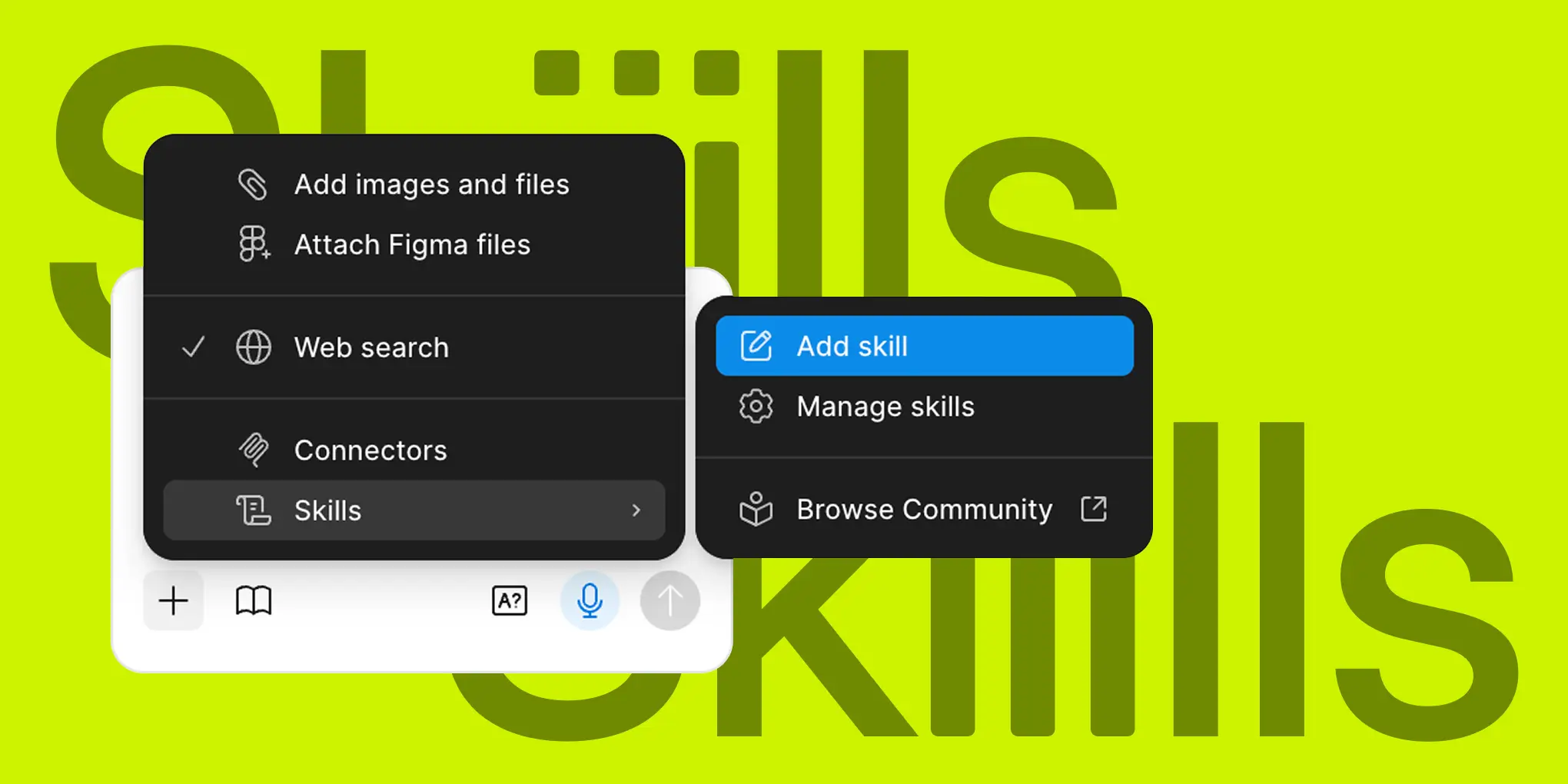
Once you could save instructions for the Figma design agent and run them with a slash command, a lot of the copy-paste prompting stopped being necessary. That's what Figma Agent Skills are: small Markdown packs that tell the agent how you want a job done, so you're not re-explaining spacing rules or review criteria every time.
Here's what skills actually are, then ten Community skills worth saving, with a plain note on when each one helps, plus a link to try it. When your screens are ready to share, the Mockuuups Figma plugin puts them into device mockups.
What are Figma Agent Skills?
A skill is a reusable instruction set for the Figma agent (and for Figma Make). It's Markdown written to the Agent Skills spec. Teach the agent once (how you audit spacing, how you want a crit structured), then trigger it with something like /better-interface instead of pasting a long prompt again.
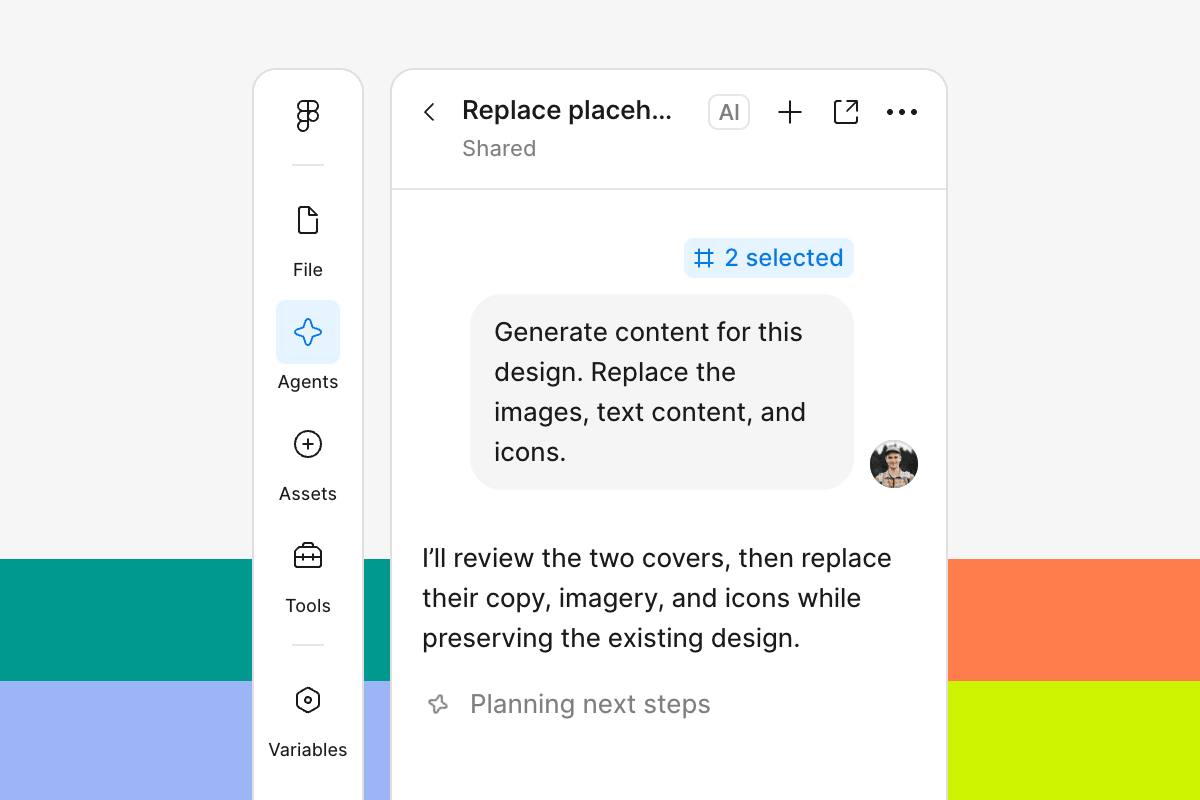
Two pieces work together:
- Your design system is what the agent should draw from: components, tokens, patterns.
- Skills carry the judgment on top: voice, review bar, handoff shape, a11y checks, writing rules.
In Figma Make, skills also aren't the same as project guidelines. Guidelines sit in the background for a whole project. Skills are the on-demand workflows you call when a specific task shows up.
Where skills show up
- In the Figma Design agent and Figma Make, wherever the agent is available
- In the Figma Community AI skills library (Community → Extensions → Skills, then Try in a file or Save for later)
- Often through Figma's MCP server in other agents (Claude Code, Cursor, Codex, and similar MCP clients), so the same workflow can leave the canvas
Adding and running one
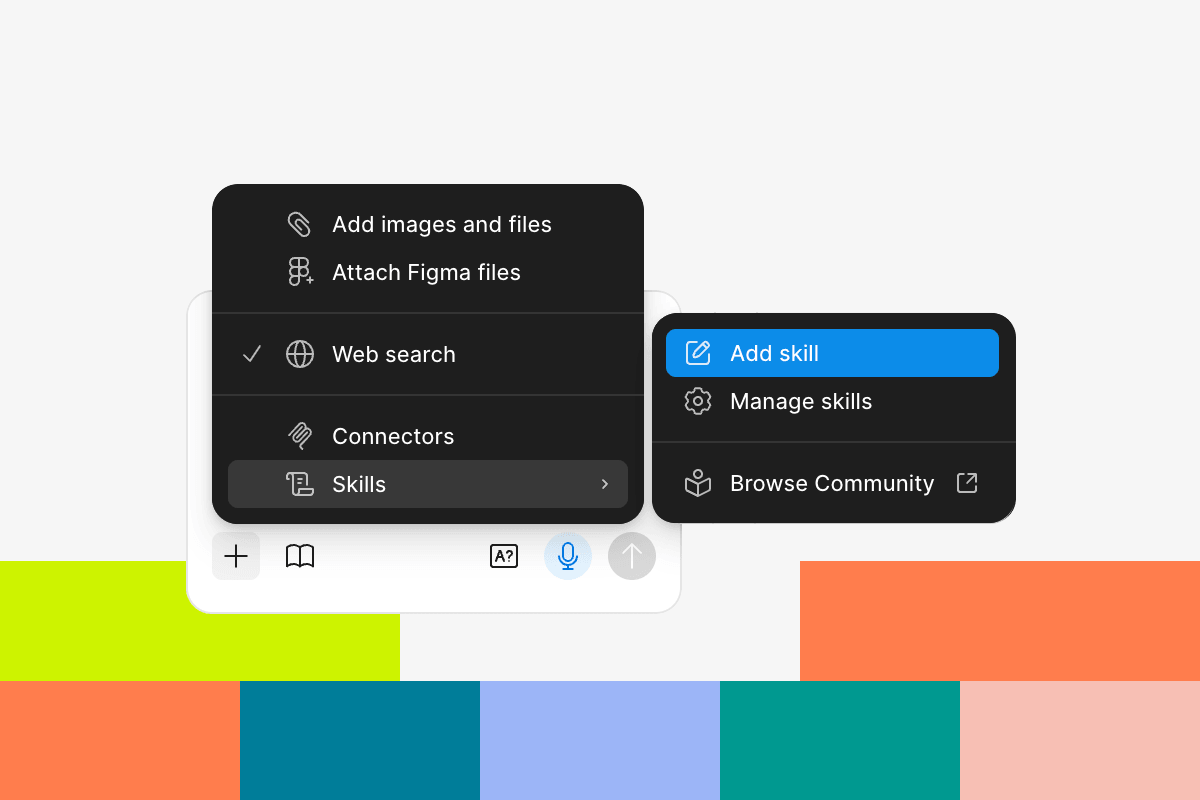
- Find it under Community → Extensions → Skills, open the page, hit Try in or Save.
- Or make your own: ask the agent to draft a skill from a frame or chat, upload a .md file, or start in Skills → Add skill.
- Run it with /skill-name in the prompt box, or Skills → Use skills.
- You can pair a skill with a connector in the same prompt, e.g. a build-from-PRD skill pointed at a Notion doc.
Availability
The design agent left beta on October 6, 2026. Full seats on Professional, Organization, Enterprise, and some Education plans get it everywhere; Collab, Dev, and View seats can use it in their drafts, and Starter has limited access. It's not free anymore: runs use AI credits, from the same monthly pool as Figma Make.
Two things to know: skills make output more consistent, not identical, and in shared files new agent chats are visible to everyone unless you make them private.
10 Figma Agent Skills worth saving
1. /better-interface: polish the details that make UI feel intentional
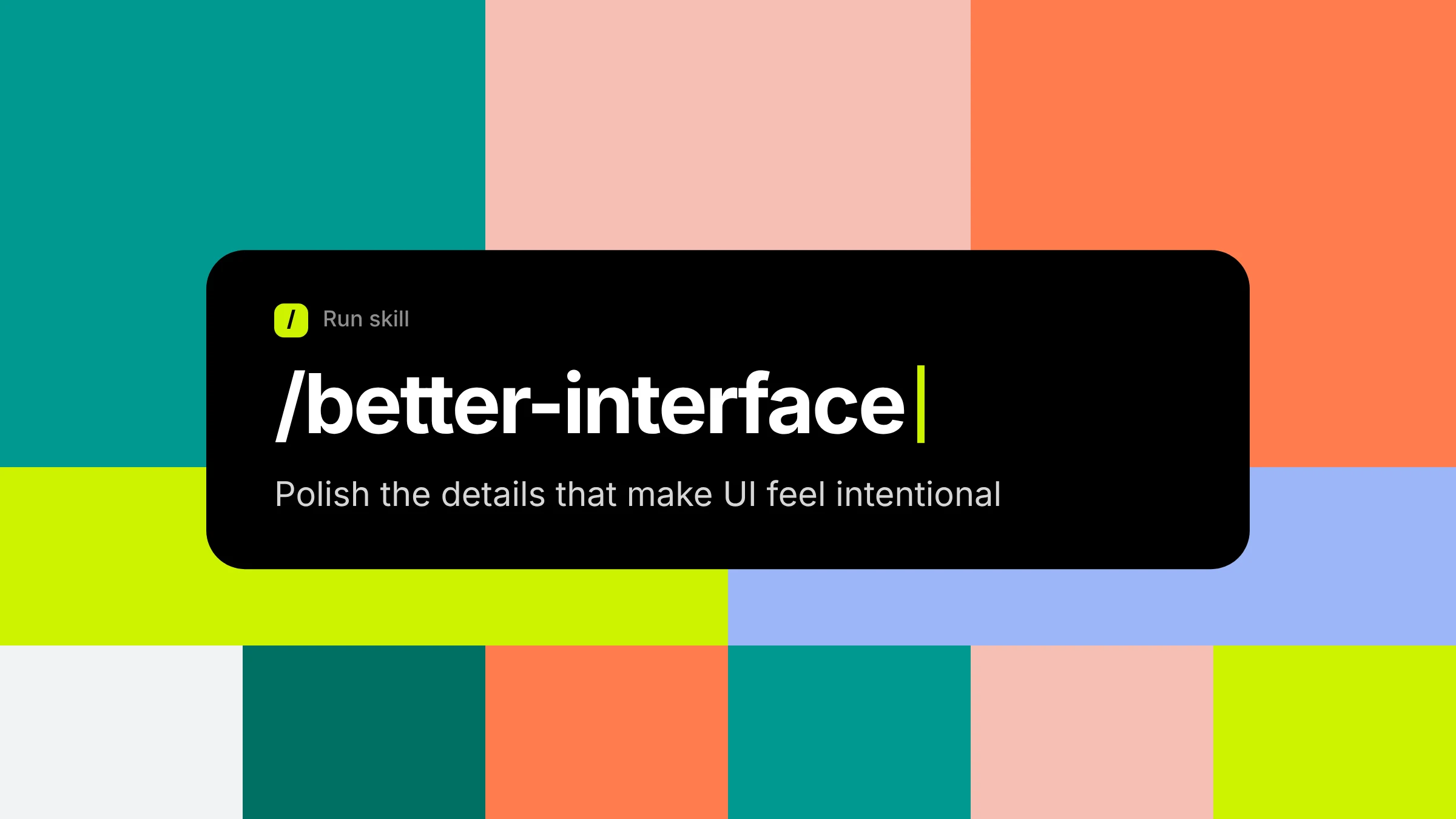
Screen mostly works, but something's still off: hierarchy, type, spacing, a11y, microcopy. This is the craft pass.
It hands the agent a rulebook across layout, typography, accessibility, motion, and product writing, then rolls the notes into one prioritized verdict instead of a pile of disconnected nits. By Jakub Krehel (Interfere).
2. /superfuture-design-review: get a structured senior-style crit
Worth running before a design review, a stakeholder walkthrough, or handoff, anywhere you'd rather hear the blockers early.
It checks UX heuristics, accessibility, visual hierarchy, interaction design, and product thinking, then buckets feedback red / yellow / green by impact. By Joey Primiani (Superfuture).
Try /superfuture-design-review
3. /component-handoff: turn a component into documentation on the canvas
If you've rebuilt the same handoff frame for the fifth component set this month, this one pays for itself.
Select a component or set; you get a shareable doc on the canvas: header (name, version, owner, description), live preview, variant grid, do's and don'ts, states, anatomy. By Mauro Berteri (Itti Digital).
4. /desktop-to-mobile: adapt a desktop frame into a real mobile layout
Marketing pages, dashboards, product screens that only exist at desktop width, and you need a phone version that doesn't look like it was squashed.
It builds a 390px mobile frame: stacks sections, turns nav into a hamburger plus a separate menu frame, scales type, keeps touch targets honest. Leaves the desktop frame alone. Output names usually look like - Mobile 390 and - Mobile Menu.
5. /create-anatomy: annotate component structure for specs
Design-system docs. An engineer asking what's inside the button. Onboarding someone onto a gnarly component. That's the job.
You get numbered anatomy markers on a live instance, plus an attribute table (and sub-component sections when they matter). Structure stays on the canvas instead of dying in Slack.
6. /find-animation-opportunities: decide what should (and shouldn't) move
Two failure modes: the static comp feels dead, or you're about to animate everything that blinks.
Point it at one frame (a line of context about persona or page goal helps). It flags where motion is missing or unnecessary, then suggests what to animate, where, and with concrete values. By Emil Kowalski (Linear).
Try /find-animation-opportunities
7. /spacing-audit: snap padding and gaps to a 4/8pt rhythm
Run it when the layout looks "almost aligned," before you hand to eng, or when you're tightening a system.
It walks the selection (or page), flags off-grid padding, gaps, and margins against a 4/8pt scale, shows before/after, and can snap to the nearest allowed step without rebuilding the whole structure.
8. /balise-ux-writing: review and harden interface copy
Buttons, forms, errors, empty states, onboarding, settings: anywhere the UI text feels inconsistent or mushy.
It reviews, rewrites, generates, or harmonizes copy while keeping product meaning and voice. Treat it like a writing partner, not a PM: it shouldn't invent behavior the design doesn't support.
9. /analyze-components: inventory and clean up a page of components
Files got messy. Orphans, duplicates, naming drift. You're staring down a cleanup or a handoff.
It crawls the page, catalogs components with previews, flags orphans/duplicates/naming issues, can help fix by cloning and swapping instances, and drops an audit doc on the canvas. By Amy Ha (Walmart).
10. /design-system-gen: bootstrap a starter system from real assets
Early brand exploration. A pitch that already has visual assets. You need light and dark foundations from what's on the canvas, not a generic starter kit.
It pulls the actual fonts and colors from the layers you selected, then builds a starter system (tokens, core components, light and dark) from those values, not "close enough" substitutes.
A simple workflow that uses several skills in order
You don't need all ten on day one. For a product screen, this order usually makes sense:
- /spacing-audit: clean the rhythm
- /better-interface: craft pass
- /balise-ux-writing: tighten labels and errors
- /superfuture-design-review: catch blockers before the meeting
- /component-handoff or /create-anatomy: document what eng will build
- /desktop-to-mobile: if you still need a phone frame
- /find-animation-opportunities: only after the static design holds up
One caveat from Figma's known issues: if you name multiple skills in one prompt, only the first runs. Separate turns.
After the design is ready, show it in context
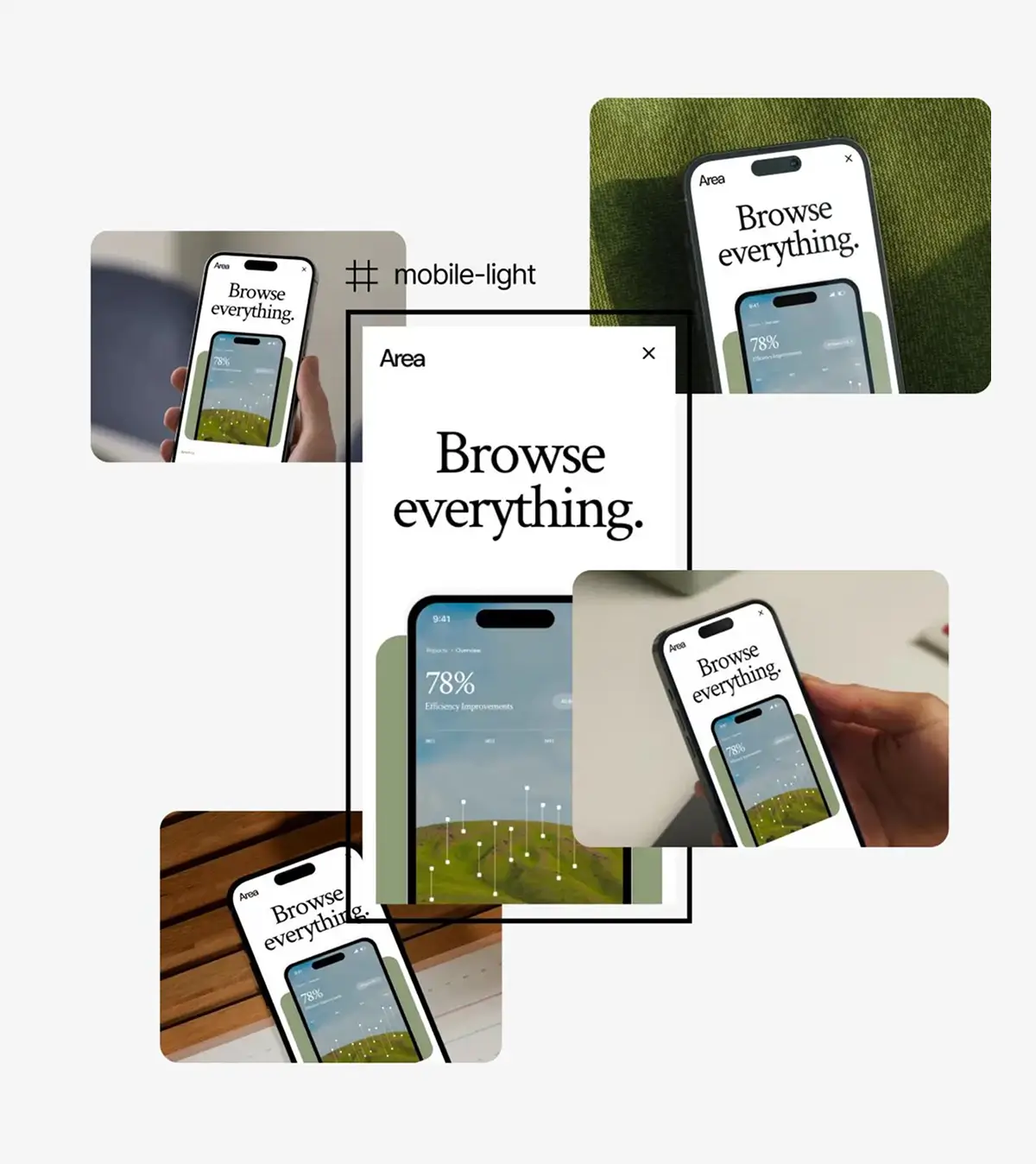
Skills help you get better screens inside Figma. Stakeholders and marketers still need to see those screens on a device, whether that's for App Store shots, a landing page, a deck, or a launch post.
Once a UI is polished (or you've got a mobile frame from /desktop-to-mobile), you can drop the screens into device mockups with the Figma mockup plugin. You keep the same designs and get presentation-ready scenes without rebuilding frames by hand. Prefer to work outside Figma? Export the screens and use the mockup generator instead.
FAQ
What are Figma Agent Skills?
Reusable Markdown instruction packs for the Figma agent and Figma Make. You call them with a slash command so the agent follows a stable workflow instead of a one-off prompt.
How do I install a skill from the Community?
Open the Figma Community AI skills library, go to Extensions → Skills, open a skill, then Try in a file or Save. Manage saved skills from chat via Add context → Skills → Manage skills.
Do skills work outside Figma?
Many do, via Figma's MCP server in compatible agents. Figma also publishes MCP-oriented skills and a foundational /figma-use skill for canvas work from coding agents.
Which skill should I try first as a product designer?
Put /spacing-audit or /better-interface on a real screen you already care about. Run /superfuture-design-review before your next crit. Add handoff and motion skills once the static design is solid.
Can I make my own skill?
Yes. Ask the agent to draft one, upload a Markdown skill file, or write it yourself. Publish to your team, org, or the Community when it's ready.
Wrap-up
Figma Agent Skills turn the prompts you keep rewriting into slash commands the team can share. The ten above cover polish, review, handoff, mobile, motion, copy, and getting a starter system stood up. Each one links out so you can try it yourself.
Save the ones that match how you already work. Tweak them. Ignore the rest.
When the screens need to leave Figma, put them in real device scenes with Mockuuups.
What's Mockuuups Studio?