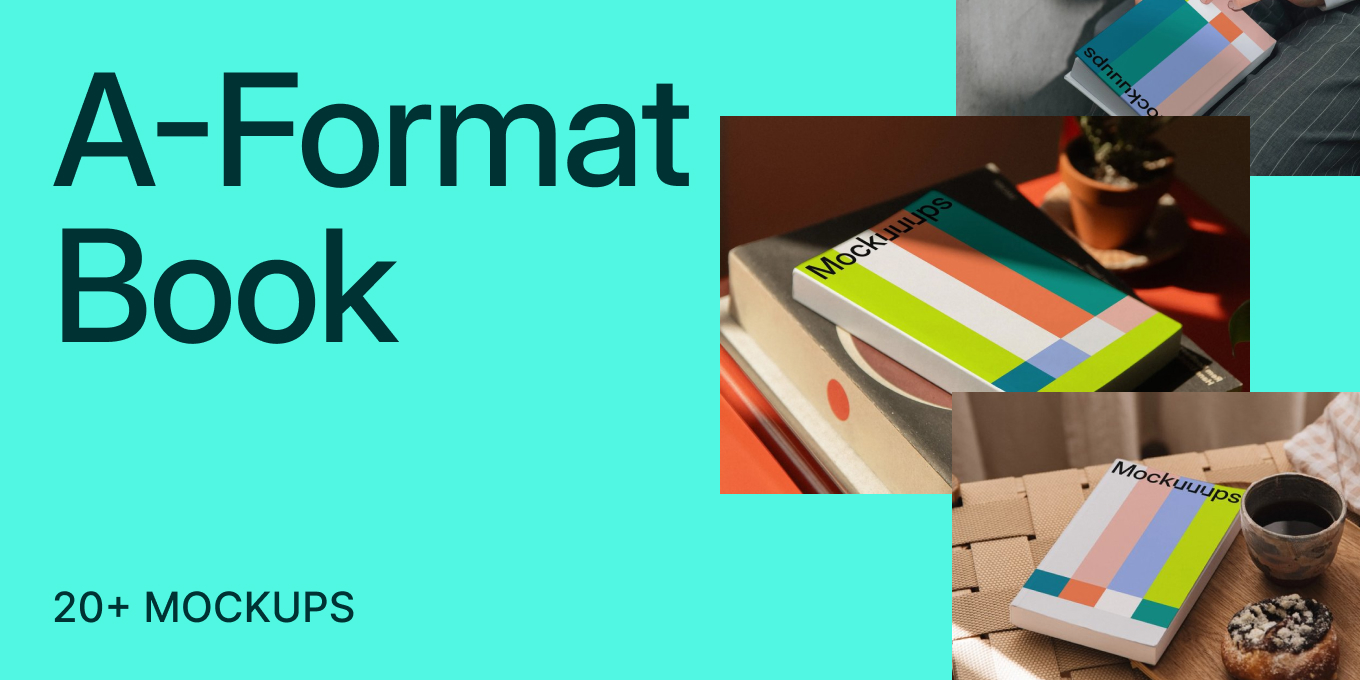
10+ Apple Watch Ultra Mockups for UI/UX Designers
- Content Updates,
- 8 minutes to read
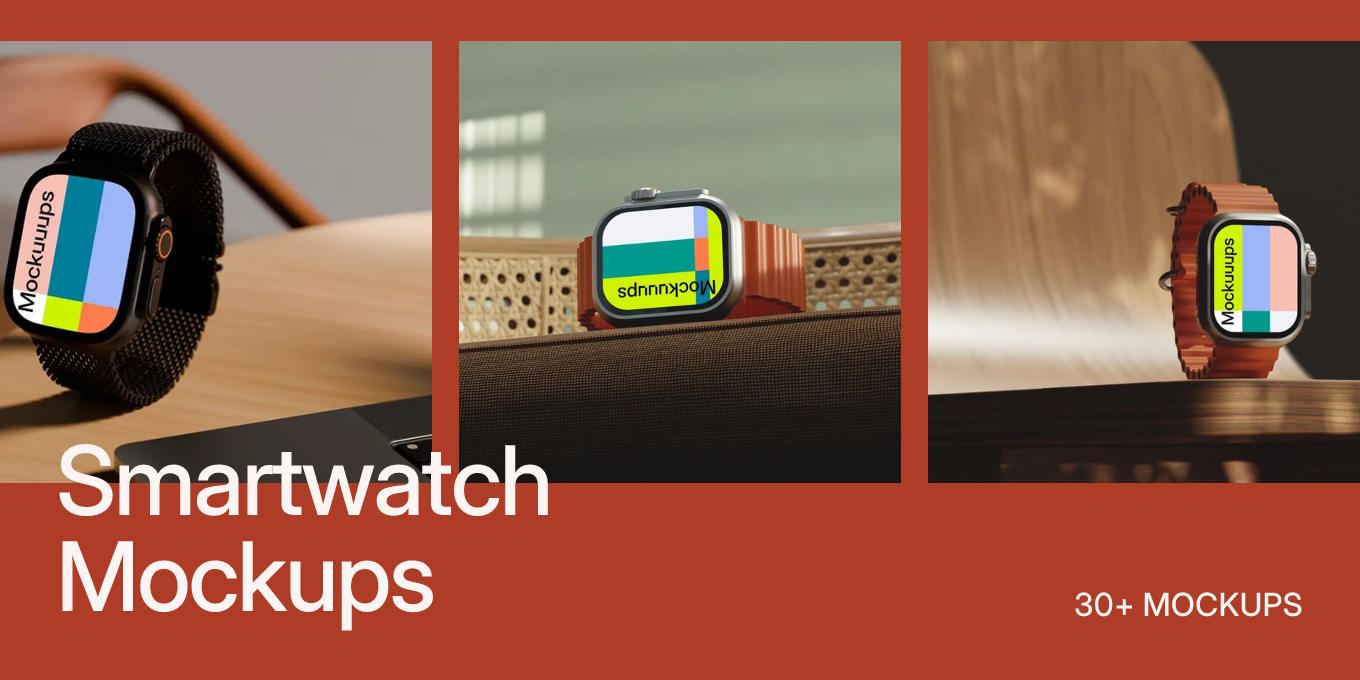
Need Apple Watch Ultra mockups that look clean and realistic? This collection rounds up Apple Watch Ultra mockups you can use to show UI, watch faces, and product concepts fast. Try them in our free online generator and build sharper presentations in minutes.
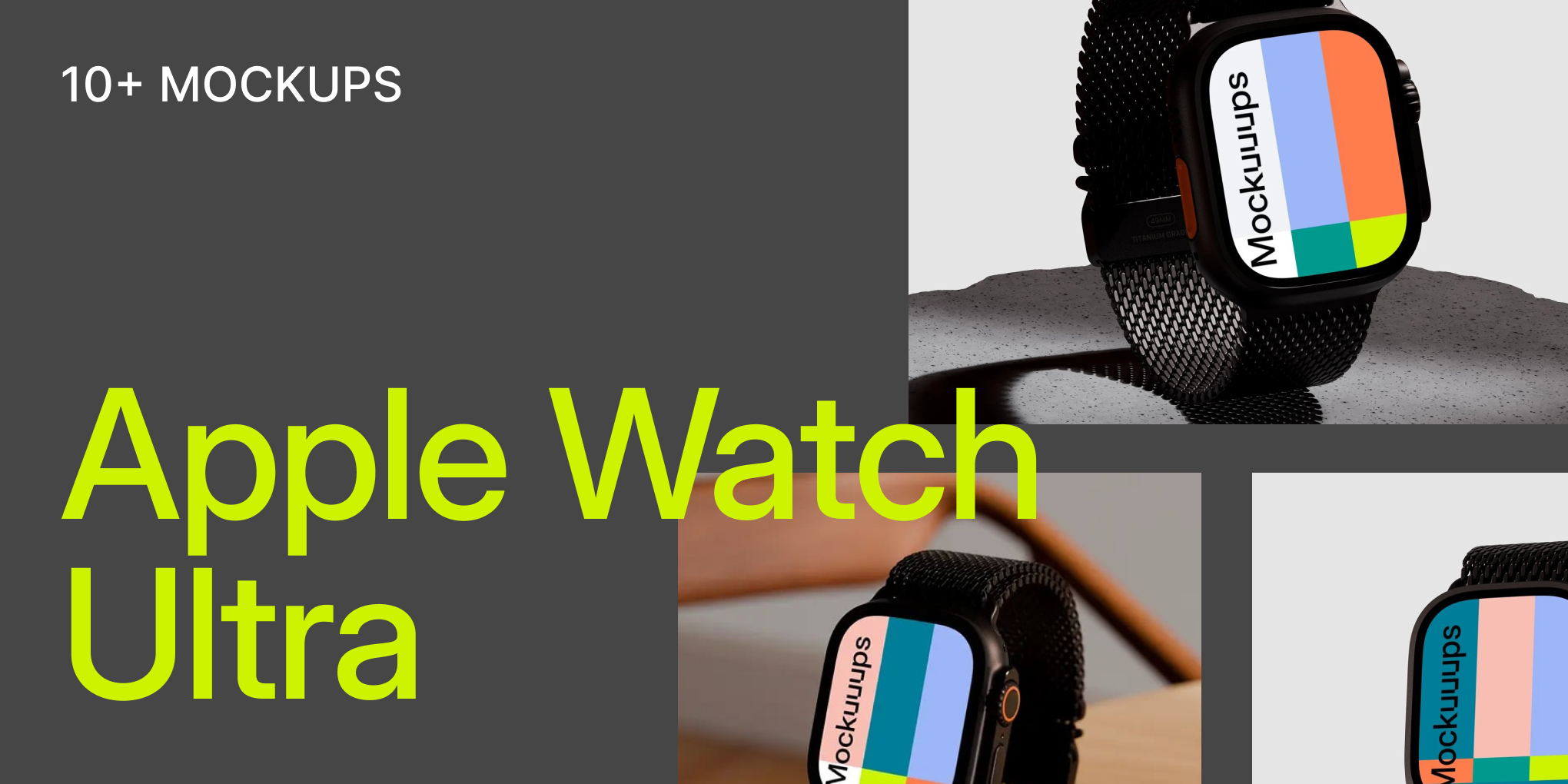
If you’ve ever dropped a watch UI into a flat screenshot and thought, “Cool, but it still doesn’t feel like a real product,” you’re not alone. Wearables are all about material, scale, and context, so your presentation needs a setting that does your design justice.
That’s why we pulled together Apple Watch Ultra Mockups. It’s a tight set of scenes that keep the focus on your interface, while still giving you enough texture, light, and depth to make the work feel tangible.
And yes, you can build these quickly. Start in the free online mockup generator when you want speed, or jump straight into the Figma mockup plugin when you’re iterating on UI and want mockups without leaving your file.
How to use Apple Watch Ultra mockups in your design workflow
A good wearable mockup isn’t just decoration, it’s a decision-making tool. Here’s a workflow that stays quick while still looking polished:
- Design first, then mockup. Finalize key states (home, activity, notifications, complication variations), then drop them into a few scenes that match your story.
- Pick scenes that support the narrative. Stone and concrete read rugged and outdoorsy. Wood and desk setups read product, productivity, and everyday use.
- Keep a consistent “set.” Use 2 to 4 mockups across a case study so your portfolio feels cohesive, not like a random collage.
- Export variations for stakeholders. One hero shot for the cover, one close crop for UI detail, and one context shot for “this is real.”
If you’re sharing options, this is where an apple watch mockup generator helps. You can swap screens and backgrounds quickly, then send a clean set of variants without rebuilding the whole presentation.
Best Apple Watch Ultra Mockups
Whether you’re polishing a case study, pitching a feature, or posting a new watch face concept, here are Apple Watch Ultra mockups that give your work context without stealing the spotlight.
1. Apple Watch Ultra mockup on a textured stone surface
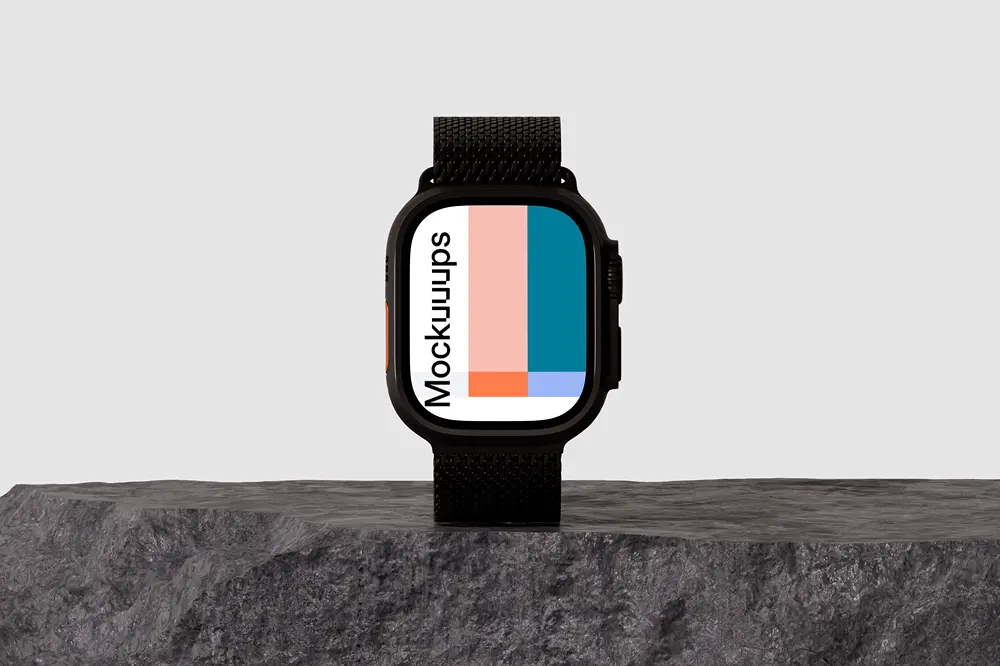
The watch stands upright on a rugged stone slab, with a calm gray background that keeps everything focused on your screen. The lighting is soft and directional, so the texture reads clearly without adding visual noise. Drop in your UI, watch face, or branding on the customizable display and you’re ready to go. Works well for fitness apps, outdoor features, and anything that leans durable and performance-driven.
2. Apple Watch Ultra mockup on a wooden desk
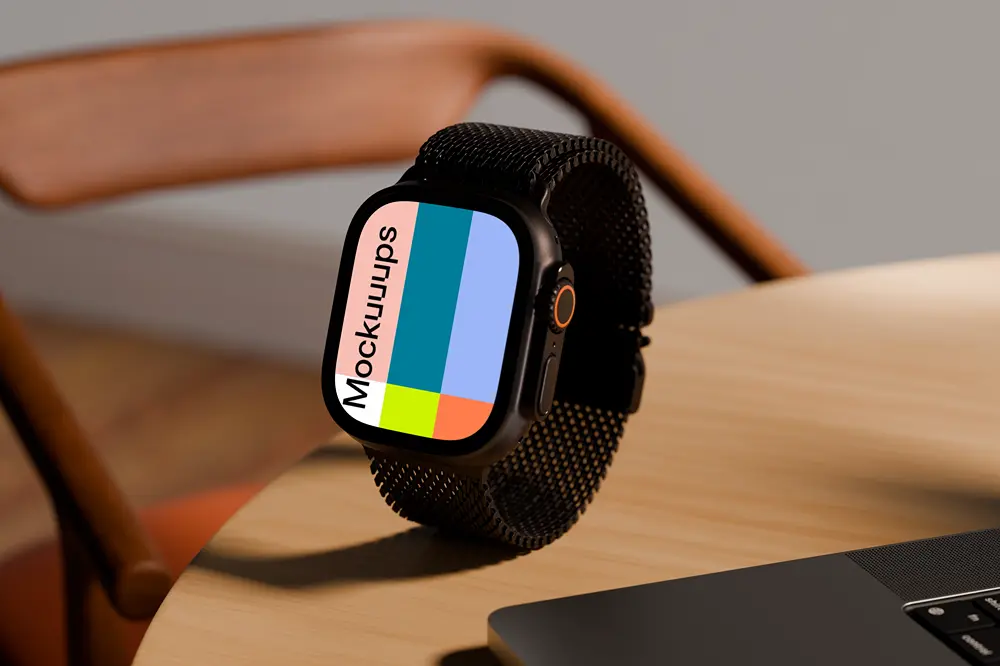
This one feels like a real workspace moment: the Apple Watch Ultra sits upright on a wooden desk, with the edge of a laptop nearby and a warm chair shape in the background. The wood grain adds just enough lifestyle texture while staying professional. Swap the screen content to show flows, complications, or a single hero face. Ideal for product presentations, portfolio case studies, and “here’s the UI in context” slides.
3. Apple Watch Ultra mockup on a modern table
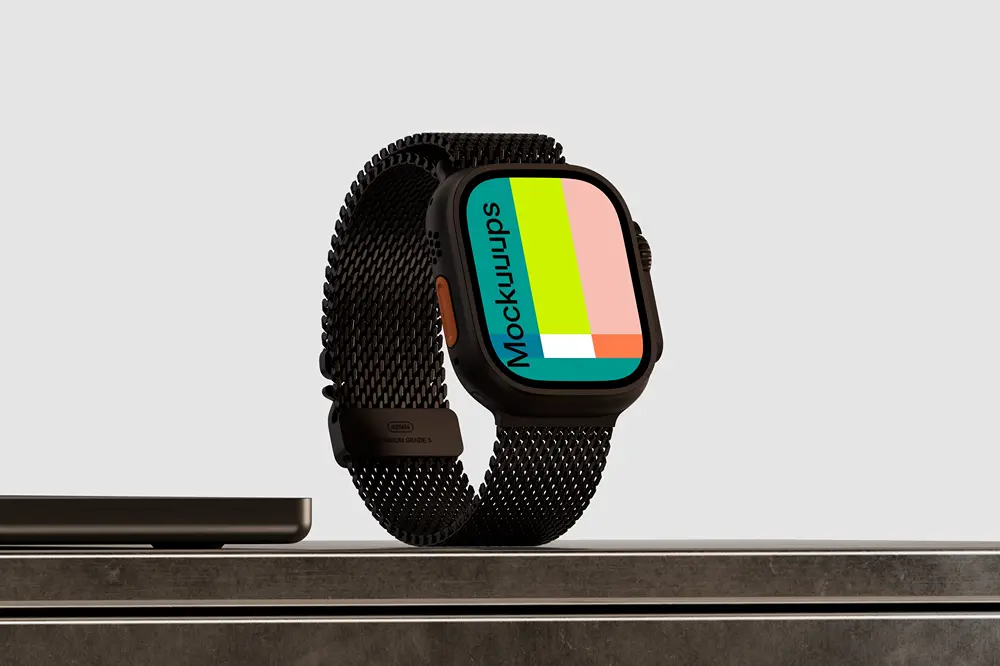
A polished dark tabletop and a glimpse of a laptop give this scene a modern, tech-forward vibe. The darker surface helps bright UI colors pop, while the overall composition stays minimal. The watch screen is fully customizable, so you can test multiple watch face options quickly. Great for SaaS companion apps, productivity concepts, and clean editorial-style layouts.
4. Apple Watch Ultra mockup on a concrete pedestal
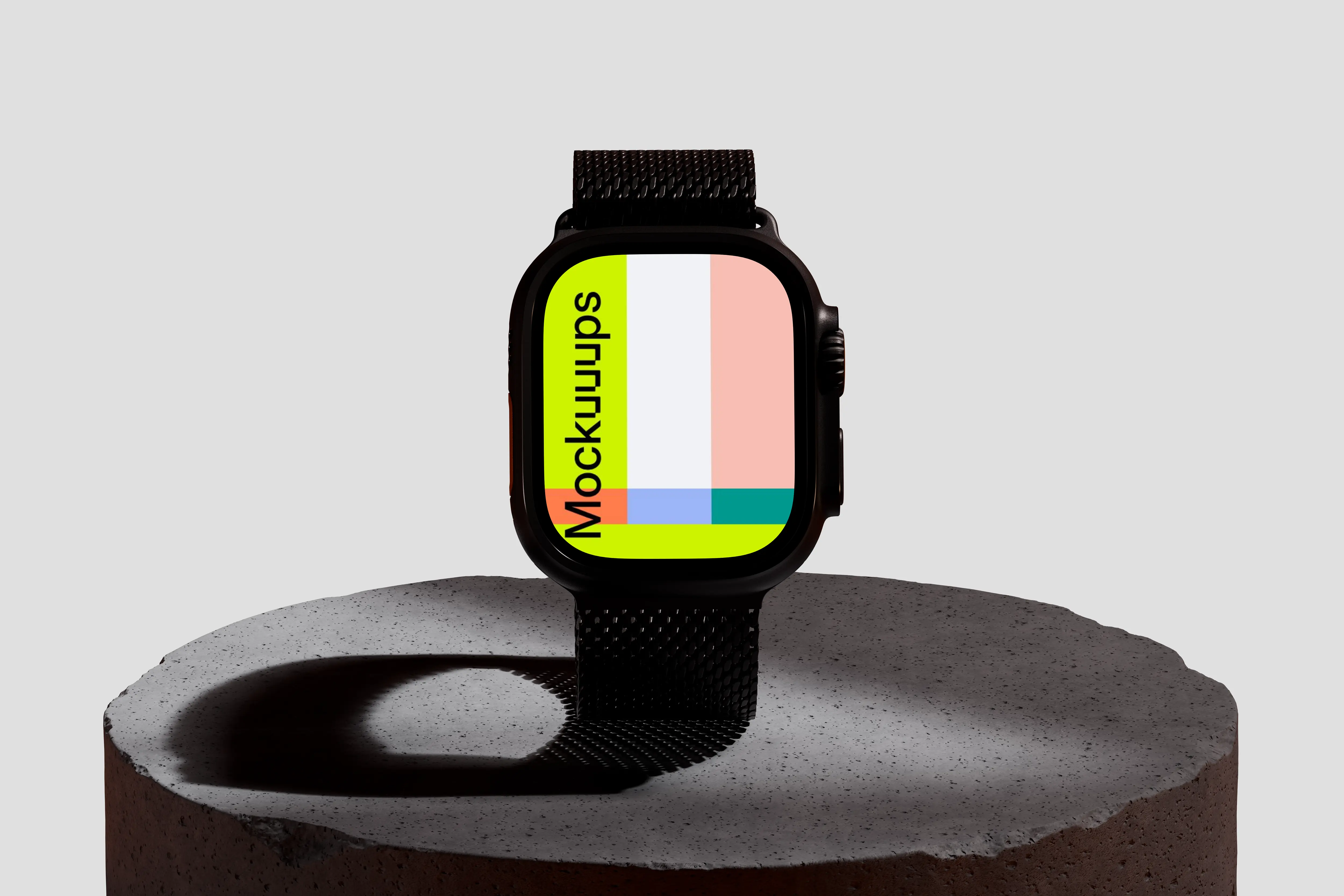
The Apple Watch Ultra is centered on a concrete pedestal against a neutral gray backdrop, which makes your interface the main event. Concrete plus metal reads modern and engineered, with crisp edges that look great in a hero shot. Replace the screen with your design and you’ve got an instant product-style visual. Ideal for feature announcements, app UI highlights, and minimalist landing pages.
5. Apple Watch Ultra mockup on a wooden chair
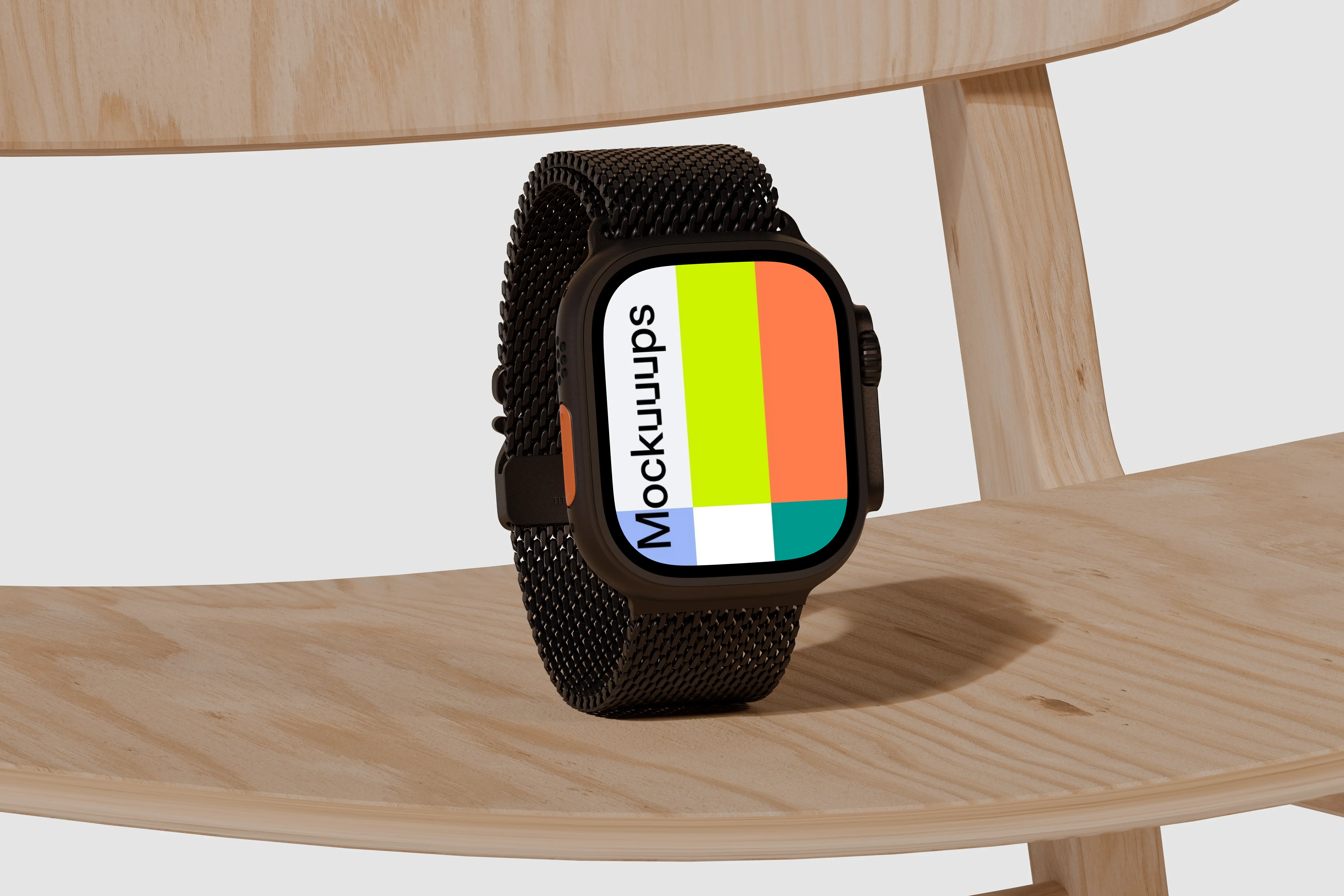
Set on a natural wooden chair surface, this mockup balances warm material with a clean, single-tone background. The mesh strap detail adds a premium feel, especially when you crop closer for UI clarity. Your screen design is easy to swap, so it’s a nice choice for iteration rounds. Works well for branding explorations, watch face collections, and portfolio hero images.
6. Apple Watch Ultra mockup on a wooden table next to a laptop
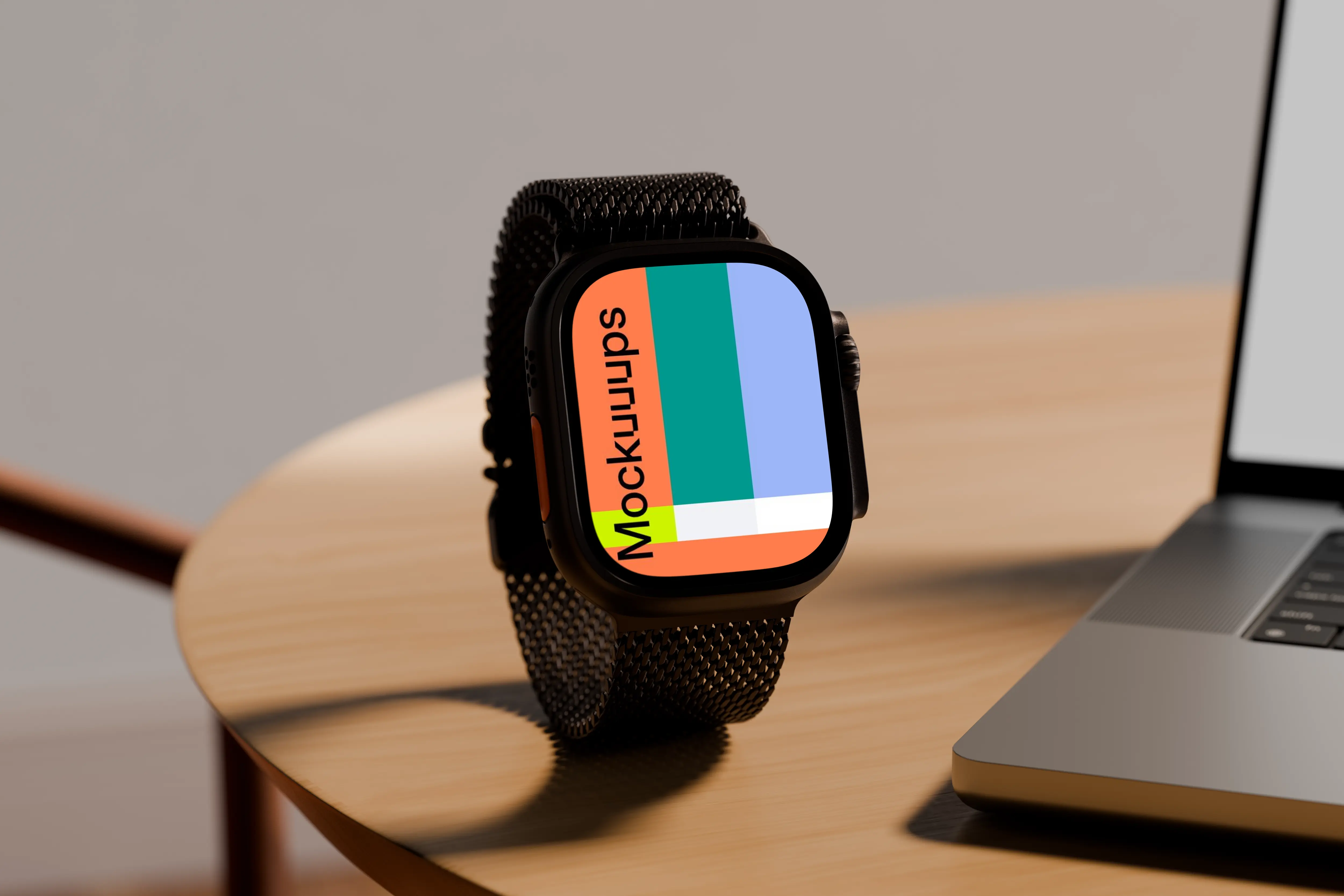
A light wood table, soft lighting, and a partially visible laptop create a familiar “design desk” scene. The watch is upright and readable, which is exactly what you want when you’re presenting UI states. Customize the display with your app screens, complications, or a marketing message. Ideal for pitch decks, client reviews, and product pages where you want a professional context.
7. Apple Watch Ultra mockup on a textured bar
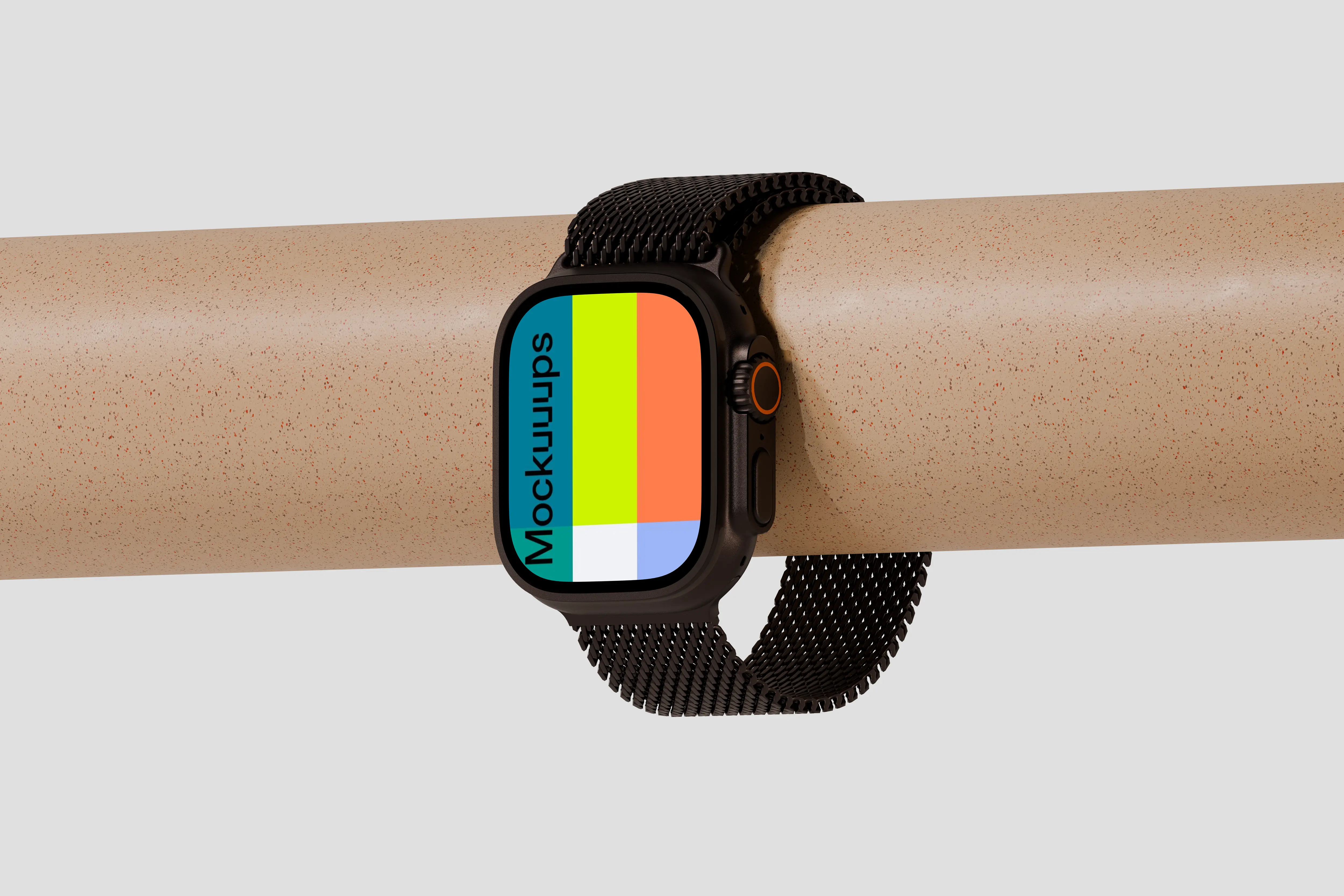
Here the watch wraps around a horizontal textured cylinder, which adds a subtle sport and hardware feel without becoming gimmicky. The background stays light and neutral, so your UI stays crisp even with bold colors. Swap in your screen design and you’ve got a dynamic composition that still reads clean. Great for health tracking interfaces, activity-focused features, and tech promotions.
8. Apple Watch Ultra mockup on a textured stone surface
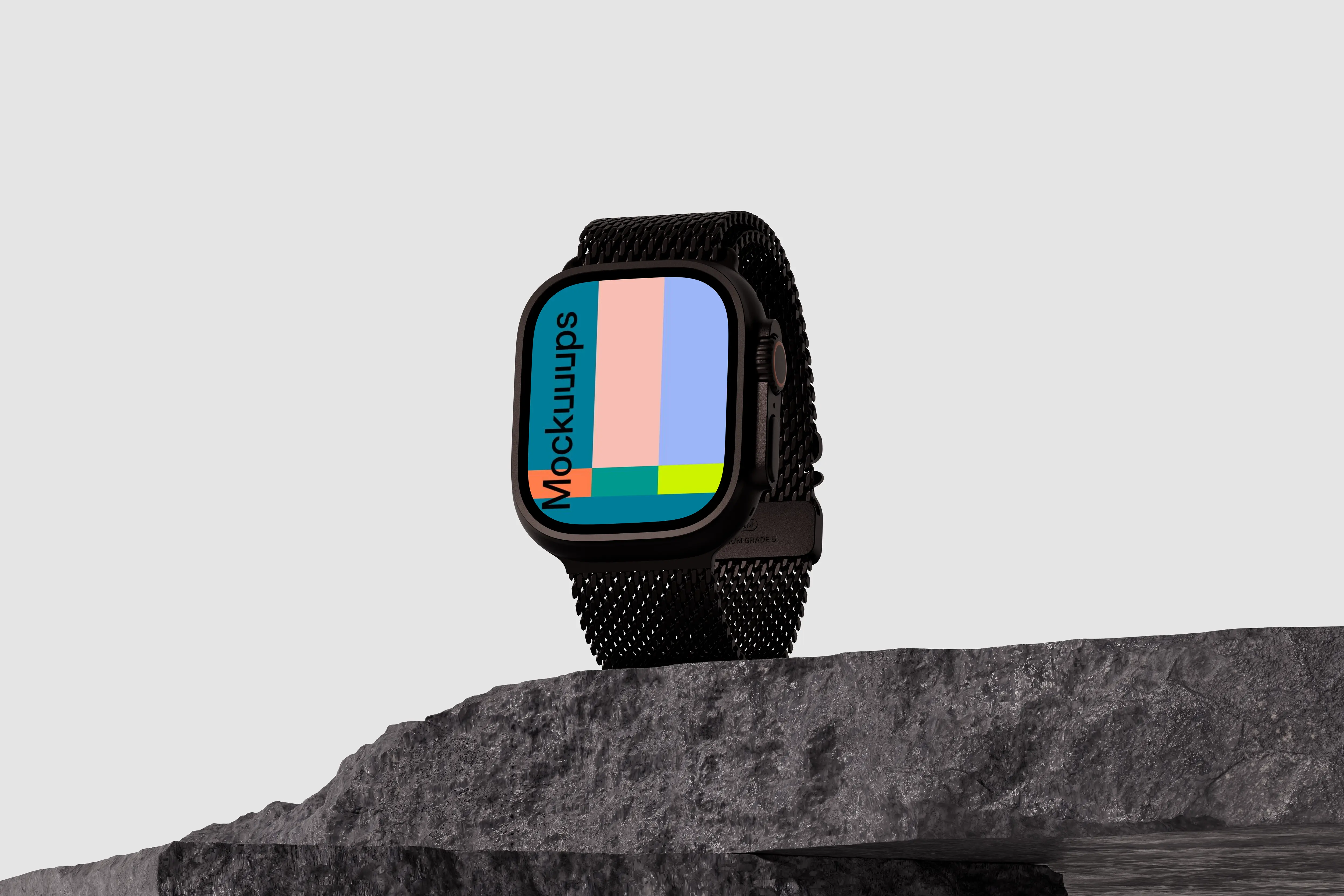
A second stone setup, but with a slightly different balance and strap styling that feels more editorial. The rugged platform contrasts nicely with the sleek watch body, giving your UI a premium, grounded context. The screen area is customizable, so it’s easy to run A and B versions of a watch face. Works well for outdoor branding, performance app concepts, and campaign visuals.
9. Apple Watch Ultra mockup on a textured platform
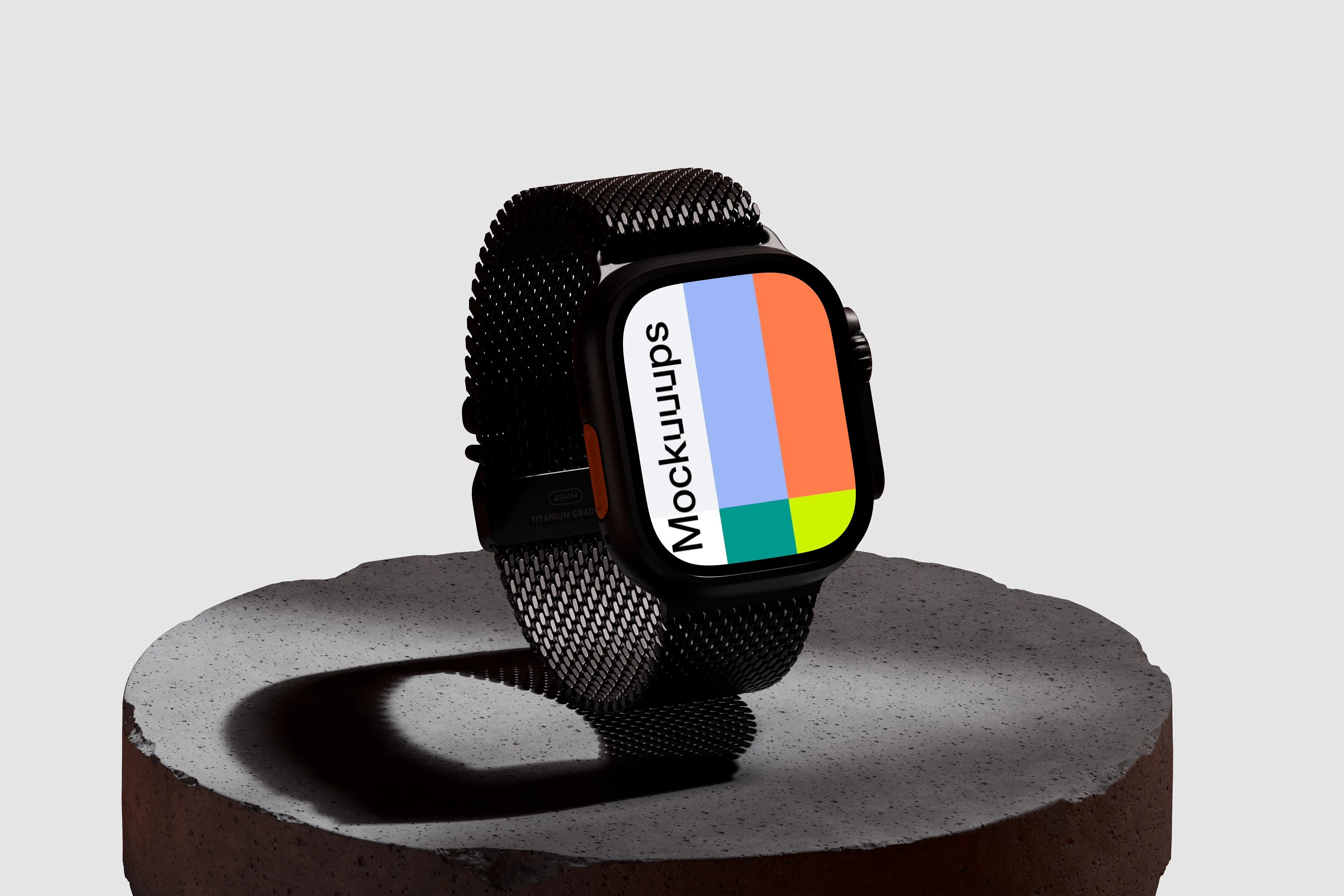
The watch sits on a round, textured platform with an industrial vibe, paired with a clean gray background. The circular base adds a strong shape that frames the device nicely, especially for centered compositions. Drop your UI into the customizable display and you’re set for a polished hero image. Ideal for product showcases, interface previews, and minimalist social posts.
10. Apple Watch Ultra mockup on a textured surface
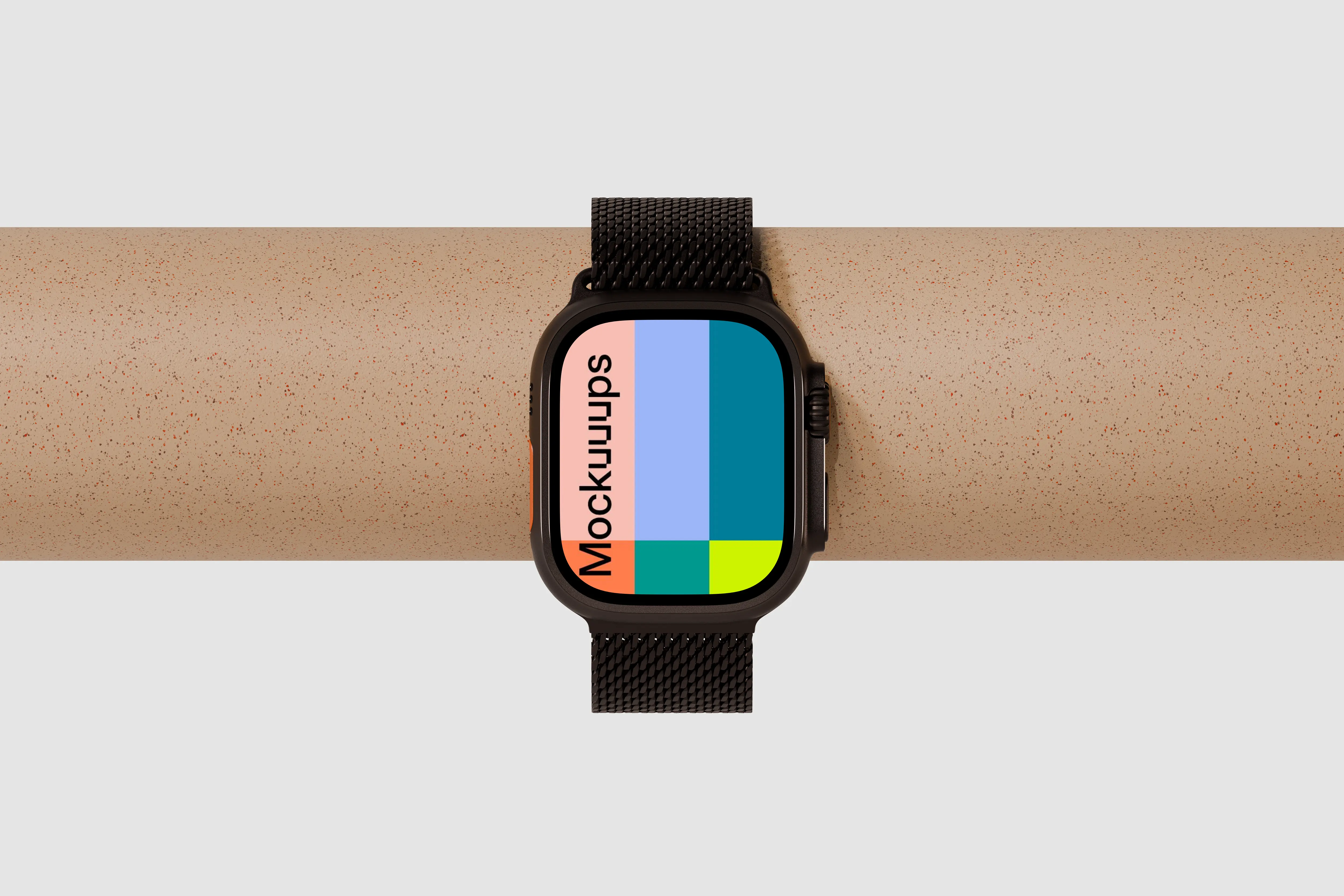
This horizontal placement on a speckled cylindrical surface feels more like a magazine product shot. The neutral background and dark strap create a strong contrast that makes bright UI elements stand out. You can replace the screen content easily, which is handy for showing multiple states in a carousel. Great for promotional graphics, watch face drops, and design system highlights.
11. Apple Watch Ultra mockup on wooden chair
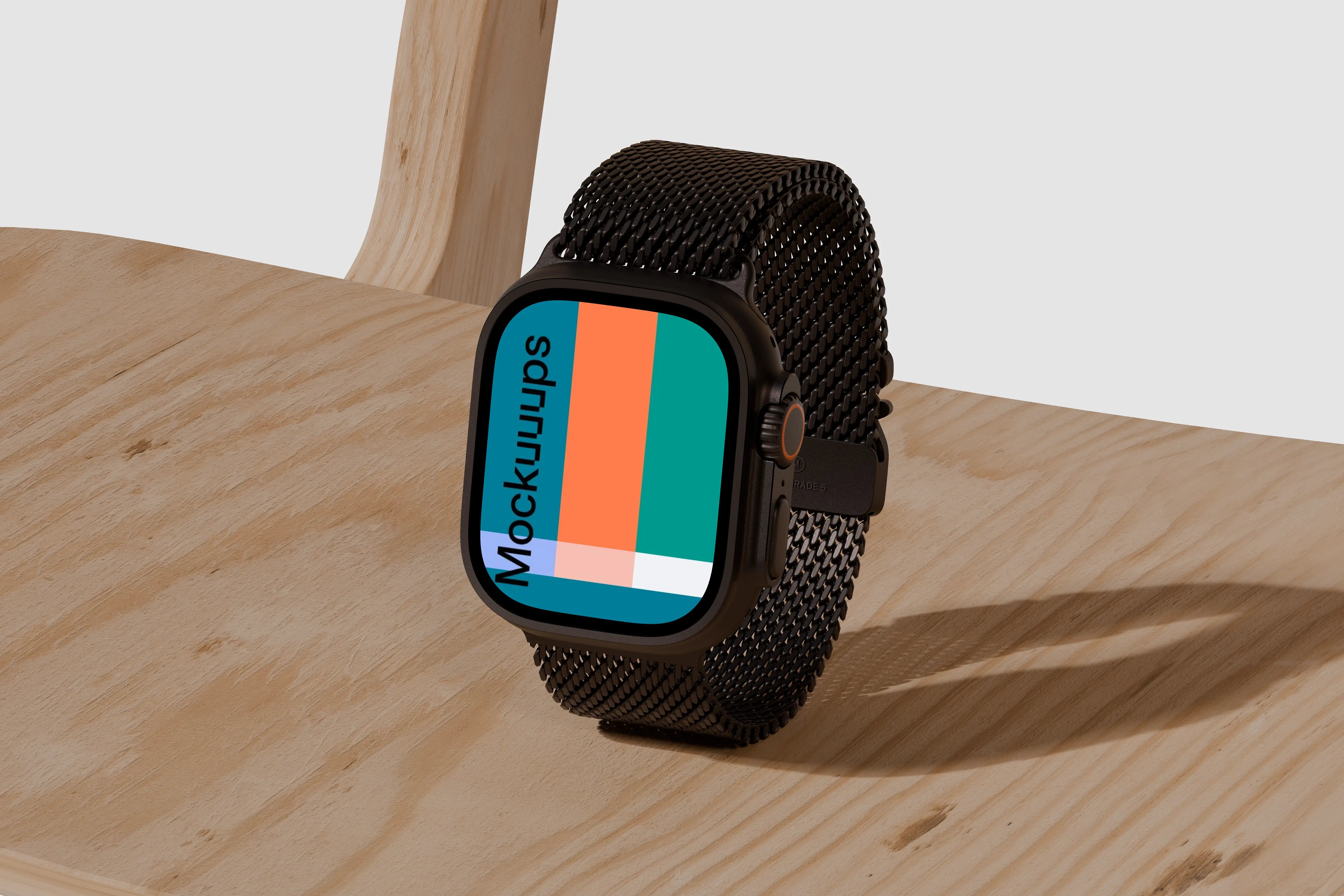
Another wood-chair angle, but with the watch tilted to show the screen more directly. The soft lighting keeps reflections under control, so your UI stays readable even in tighter crops. Swap in your design and you’ll get a clean, modern lifestyle look without extra props. Ideal for portfolio sections, client mock reviews, and app UI callouts.
12. Apple Watch Ultra mockup on a rugged stone surface
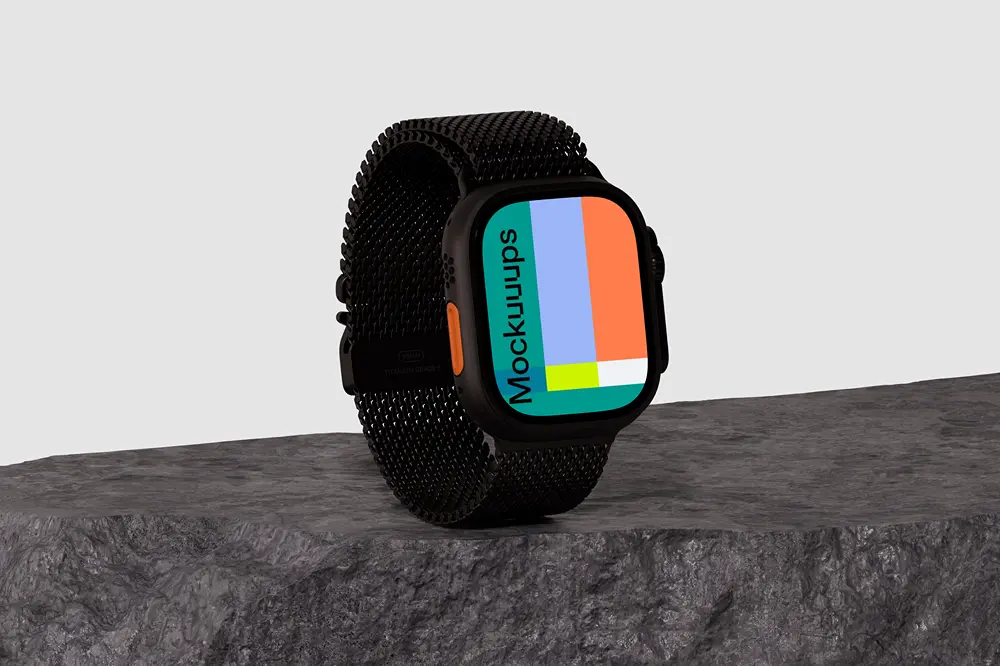
This rugged stone surface brings a bit more drama in the texture, while still keeping the overall scene minimal. The device reads bold and durable, which pairs nicely with fitness, navigation, or adventure-focused interfaces. Customize the display with your UI and you’ve got a strong hero visual fast. Works well for feature launches, outdoor app branding, and campaign landing pages.
13. Apple Watch Ultra mockup on a modern wood backdrop
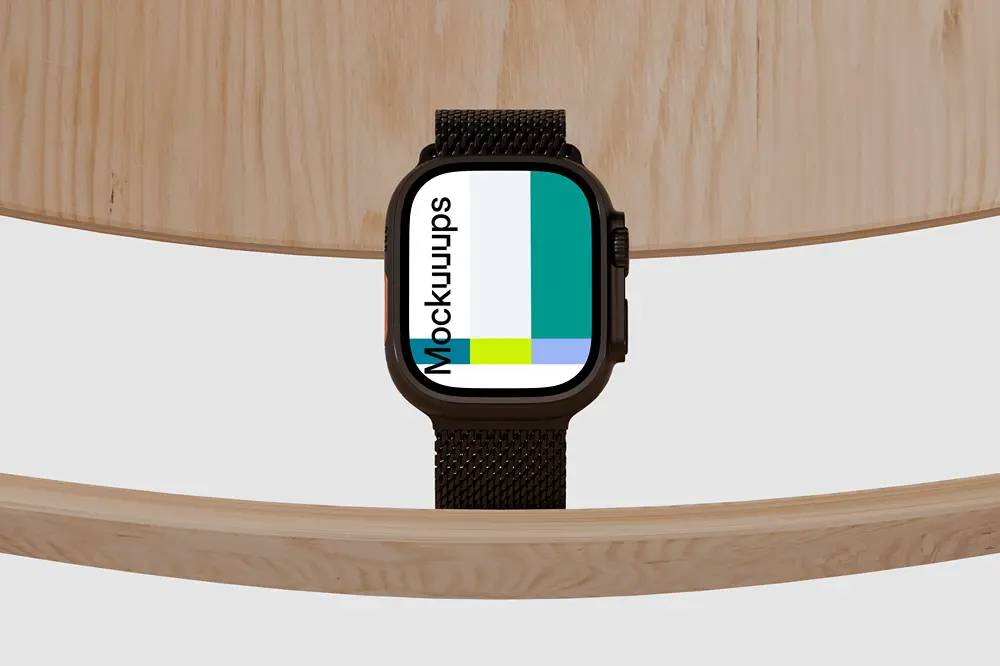
A smooth, curved wood backdrop gives this one a refined, contemporary feel, like a premium product ad. The upright watch placement keeps the screen front and center, and the natural wood tone plays nicely with both dark and colorful UIs. Drop in your custom screen content to match your brand or feature story. Ideal for high-end presentations, product marketing visuals, and polished case study covers.
Find your ideal Apple Watch Ultra mockup
If you want wearable visuals that feel real but still keep your UI readable, this set is a solid go-to. Browse Apple Watch Ultra Mockups and pick a few scenes that match your story, then iterate fast with your screens until the presentation clicks.
What's Mockuuups Studio?