How to create mockups in Figma?
Mockuuups Studio runs inside Figma with access to the full mockup library. Create device and print mockups from your designs without leaving your workspace.
What do you want to do?
- Create a new mockup → Start here if this is your first mockup
- Update an existing mockup → If you already have a mockup placed in your Figma file
Create a new mockup
Choose a frame, select a mockup, hit export. Takes a few seconds. Need more detail? Here's the full workflow:
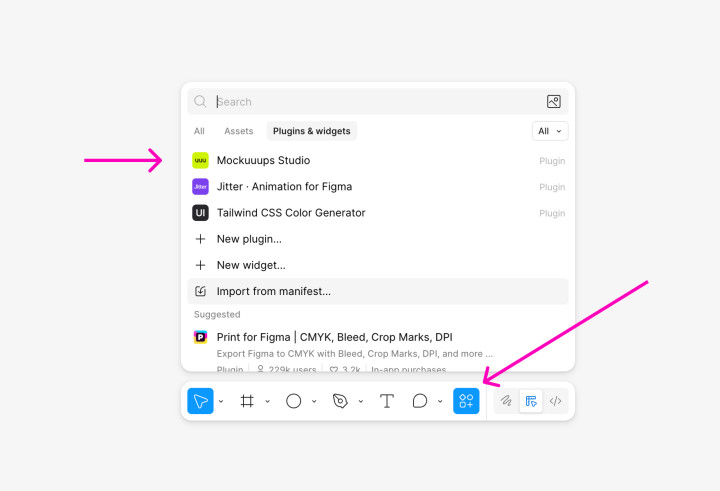
1. Open the plugin
Navigate to Actions → Plugins & Widgets → Mockuuups Studio
2. Select your design
The visual frame picker loads automatically, showing thumbnails of every frame on your current page. Click any frame to apply it to all mockups.
No frames on your page? Create a frame in Figma first (press F to create a frame, or use the frame tool in the toolbar). Or switch to the Import tab to upload files, capture website screenshots, or import from mobile instead.
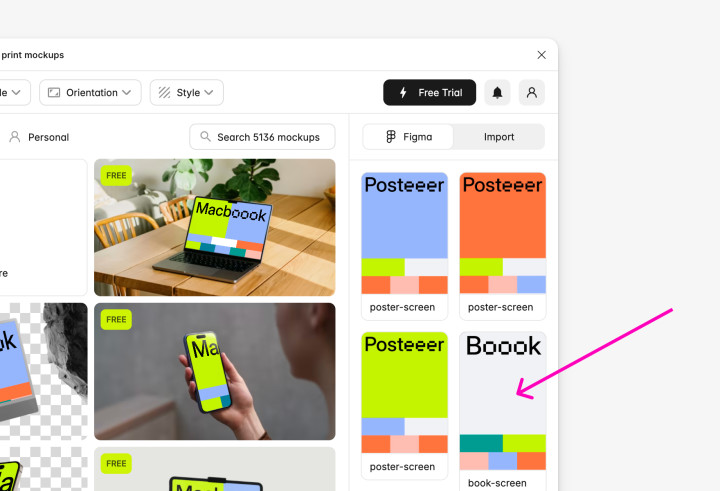
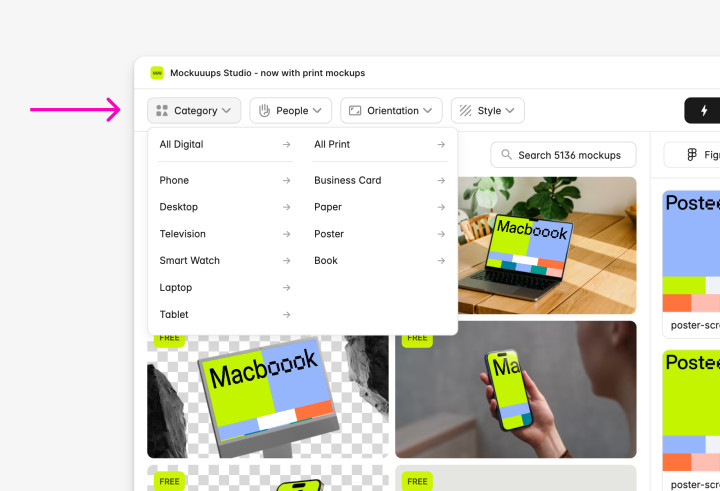
3. Browse mockups
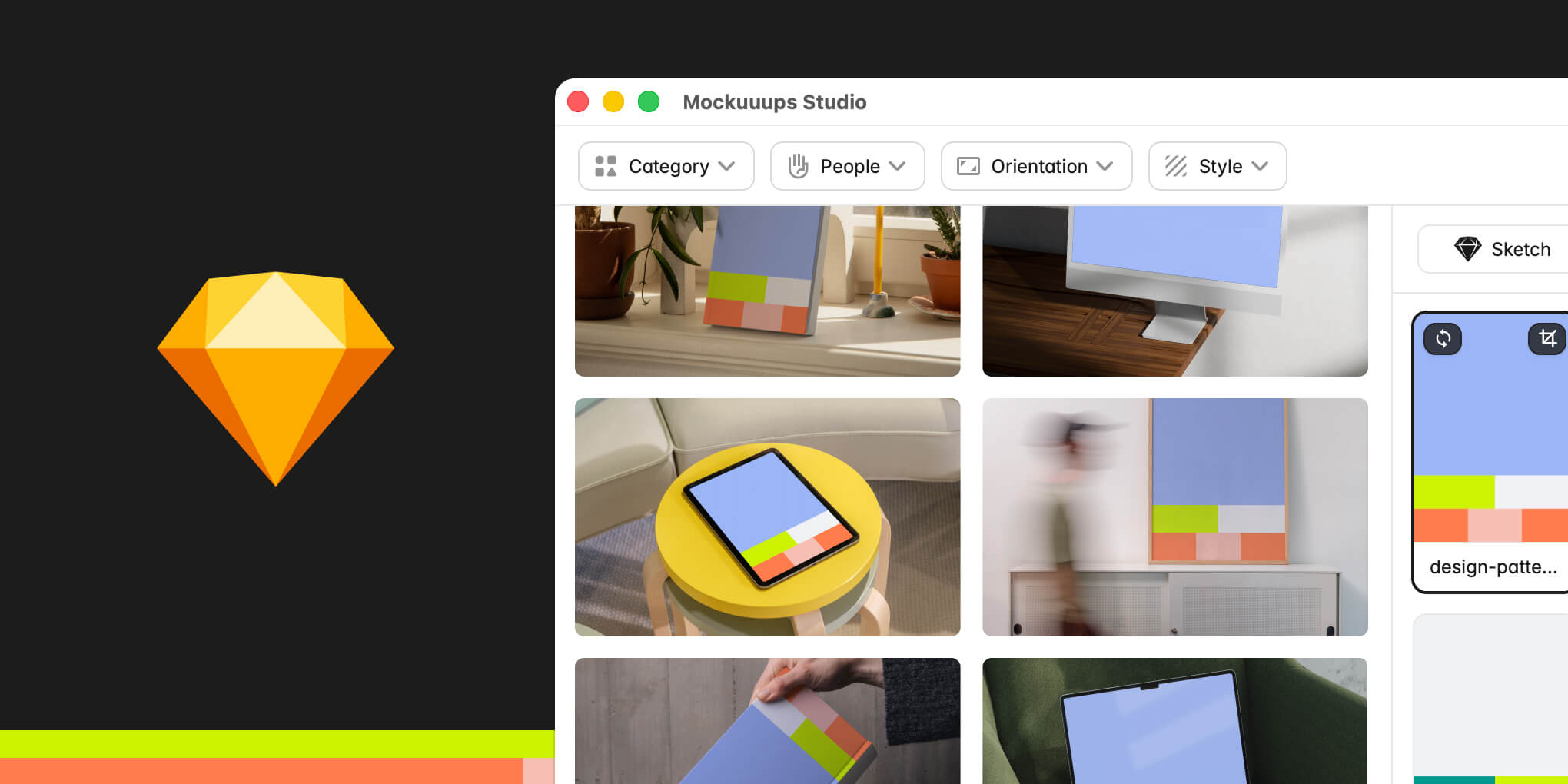
Use the category filter at the top to choose between Print or Digital mockups, people on the mockups, scene orientation or style.
4. Preview and select
Scroll through mockups. Your selected frame appears in every mockup preview. Click any mockup to open the mockup detail with export view.
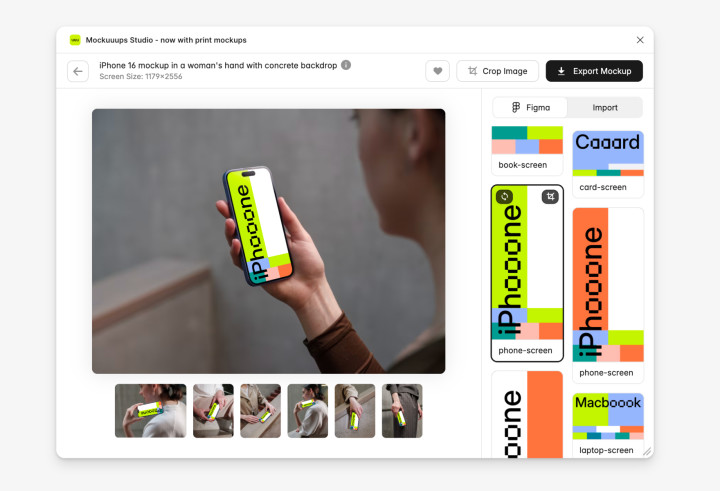
Optional adjustments:
- Crop Image: Fine-tune how your screen fits inside the mockup. Your design is automatically positioned, but you can adjust if needed.
- Customize: Available on selected mockups. Change background colors on transparent mockups, add overlays, or adjust mockup colors to match your brand.
5. Export
Click on the Export mockup on top right corner.
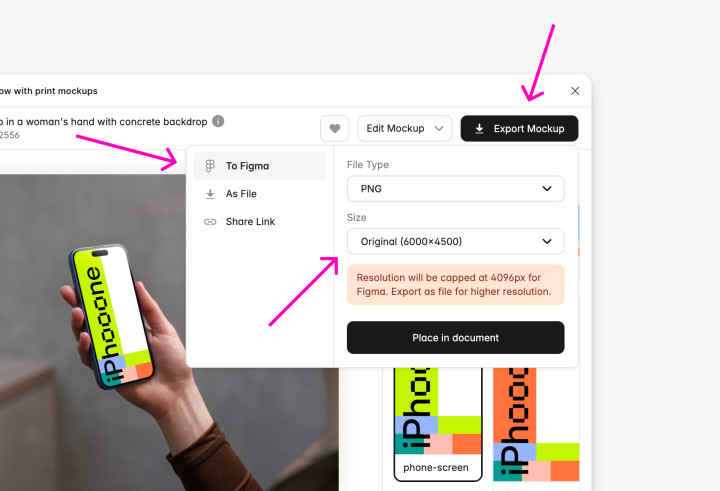
Choose export destination:
- To Figma - Places the mockup directly on your current Figma page as an image.
- As File - Downloads the mockup to your computer.
- Share Link - Generates a shareable URL for the mockup.
Export settings:
- Format: Choose PNG (recommended), JPG (smaller files), or WebP (web-optimized)
- Size: Use original, medium or small size. Optionally you can choose from social media presets (Instagram, Facebook, LinkedIn).
Troubleshooting
I don't see any frames in the visual picker
The frame picker only shows frames from your current Figma page. Check:
- Are you on the correct page? Switch pages using the Pages panel on the left.
- Do frames exist on this page? Press F to create a new frame.
- Are frames hidden? Unhide layers in the Layers panel.
- Still nothing? Click the refresh icon in the frame picker.
If no frames are available, switch to the Import tab to upload files, capture website screenshots, or import from mobile instead.