How to update mockup in Figma?
Already placed a mockup in your Figma file? You can update it with a new design without re-exporting from scratch.
1. Select the mockup
Select the mockup from the layers panel or click it directly on the canvas.
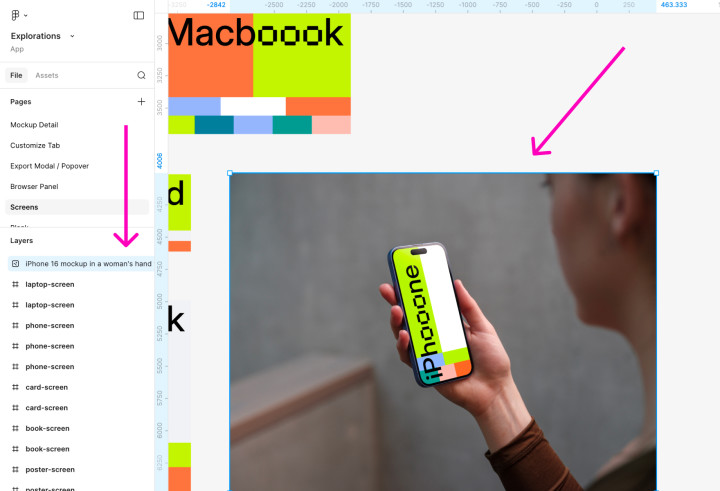
2. Open update options
Look for "Update Mockup" in the right Figma sidebar (Properties panel). Click it.
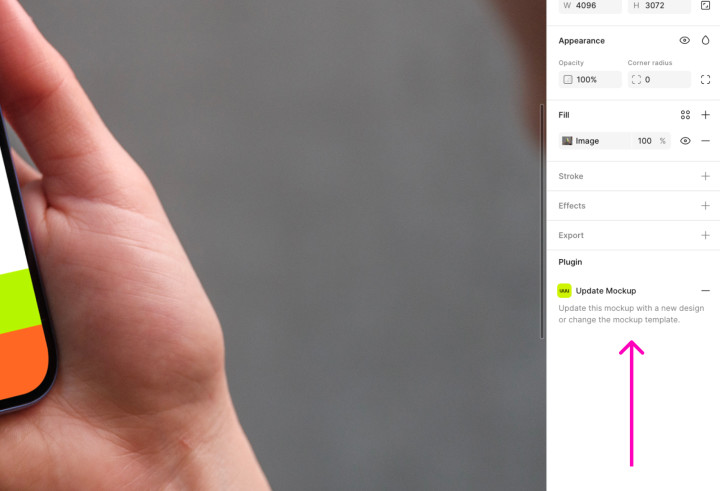
3. Plugin opens automatically
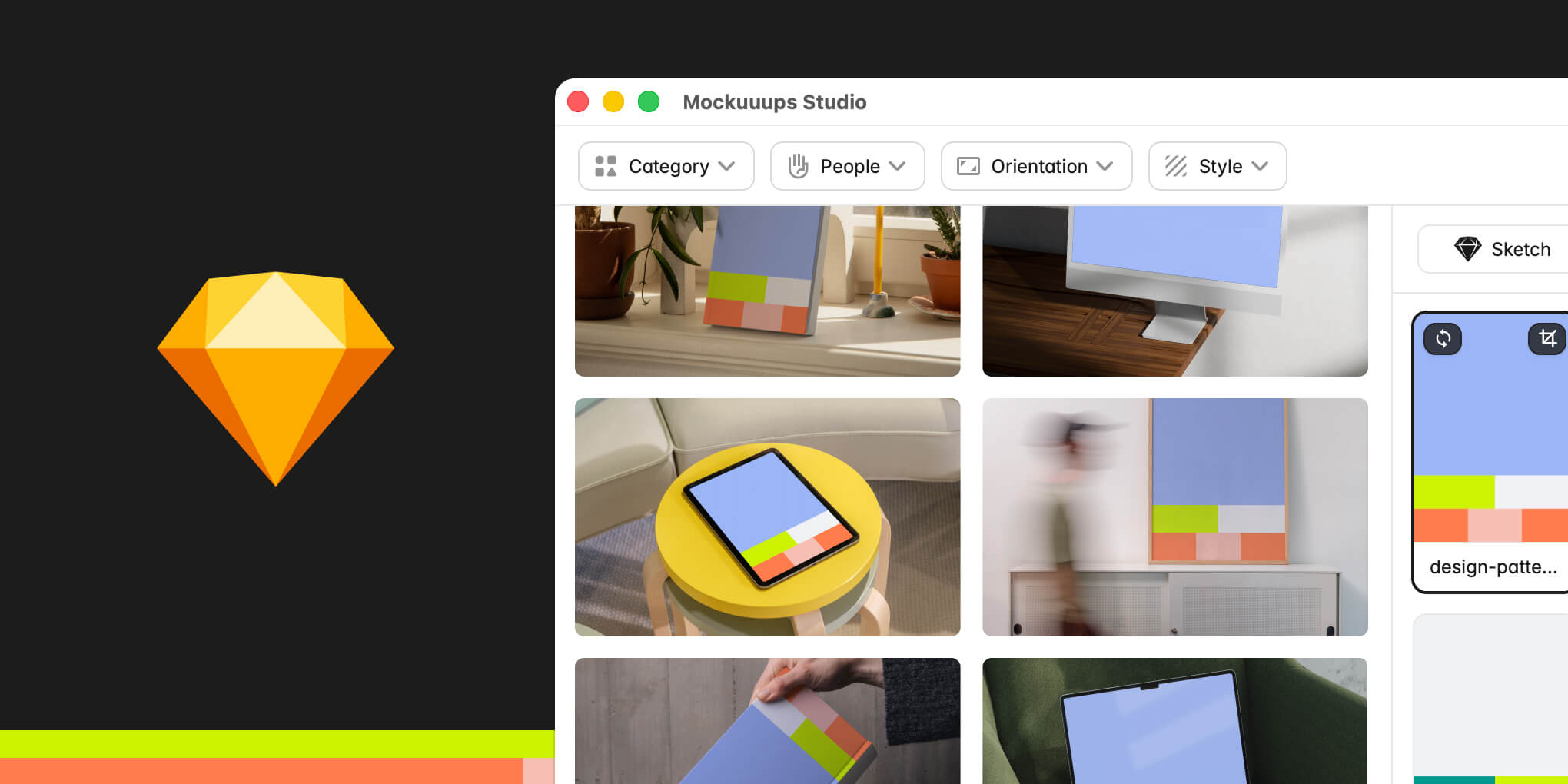
The Mockuuups Studio plugin launches with that specific mockup already loaded. Use the visual frame picker or Import to select a different frame, or keep the same design if you've updated the original frame.
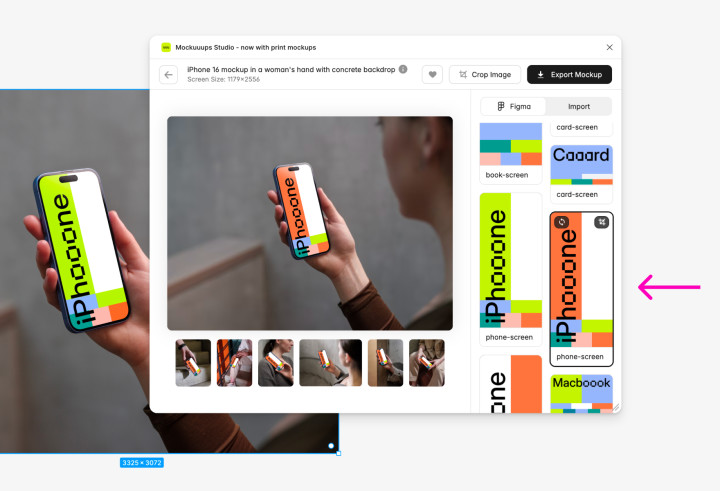
4. Update or place new
Choose one of two options:
- Replace existing layer: Replaces the existing mockup in your Figma file
- Create a new layer: Adds a new mockup to your Figma file while keeping the original
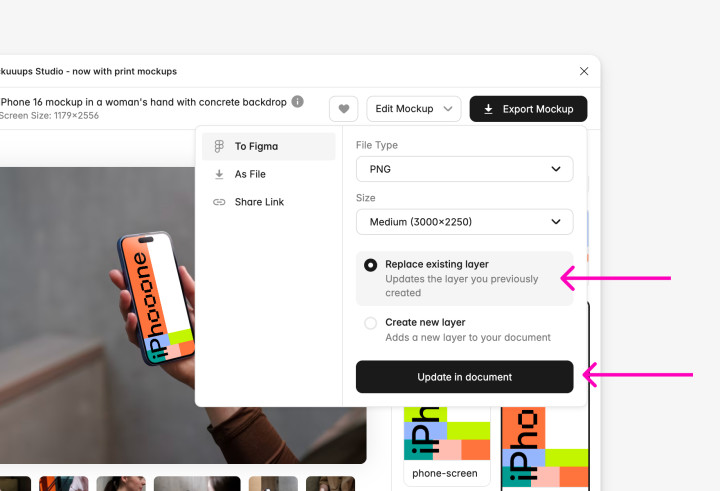
Click "Update in document".
When to use this
- Your design changed: You've updated your app screens or website design and want to refresh mockups without starting over.
- Different frame, same mockup: You want to show the same mockup style with a different screen or design variation.
- Version comparison: Place as new to keep both the old and updated mockup side by side for comparison.
Troubleshooting
- Update Mockup button missing: Make sure you've selected the mockup image itself, not a frame or group containing it. The button only appears for mockups placed through the plugin.